Recording Investor Vulnerability on SS&C Platform Solutions
This guide outlines the process for recording and updating information about clients who may be considered vulnerable. This information allows us to offer additional support where necessary.
Setting Vulnerability Flags
When dealing with clients who exhibit characteristics of vulnerability, it is crucial to ensure that their records are appropriately flagged and that any required service adjustments are applied. This applies both to existing clients and new clients as they are added to the system.
Steps to Create a New Investor with Vulnerability Information
1. Creating a New Investor:
o At the bottom of the "Create New Investor" screen, check the Is Vulnerable box to flag the client as vulnerable.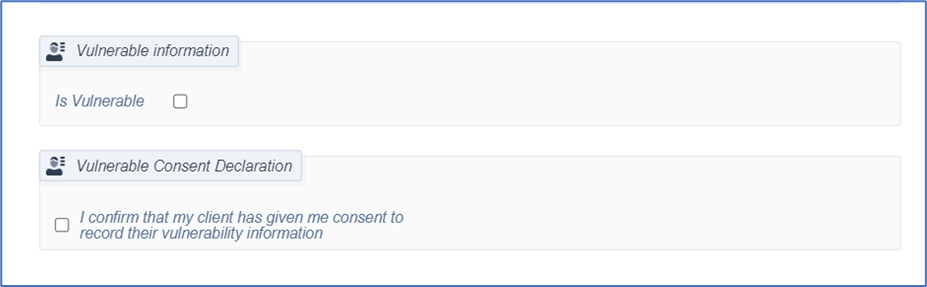
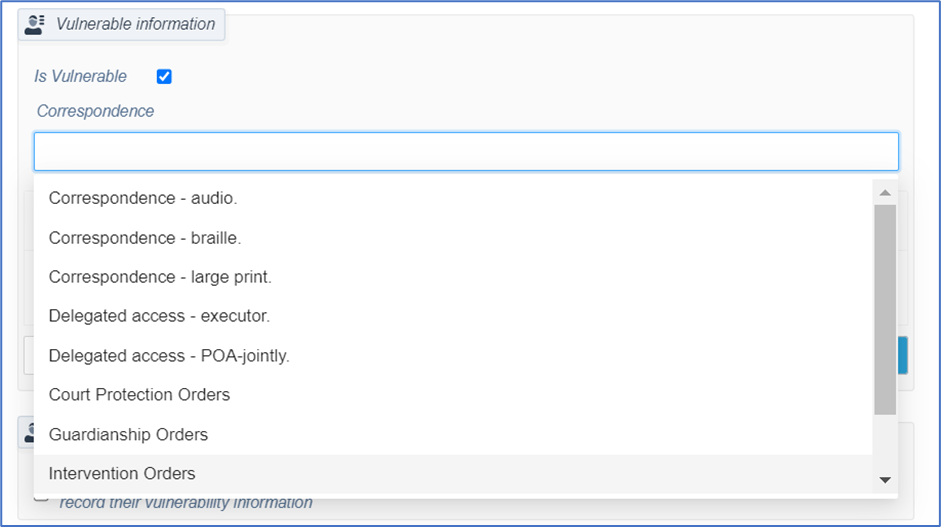
2. Select Correspondence Details:
o Choose the relevant correspondence options that apply to the investor.
3. Specify Vulnerability:
o Select the type of vulnerability from the available options.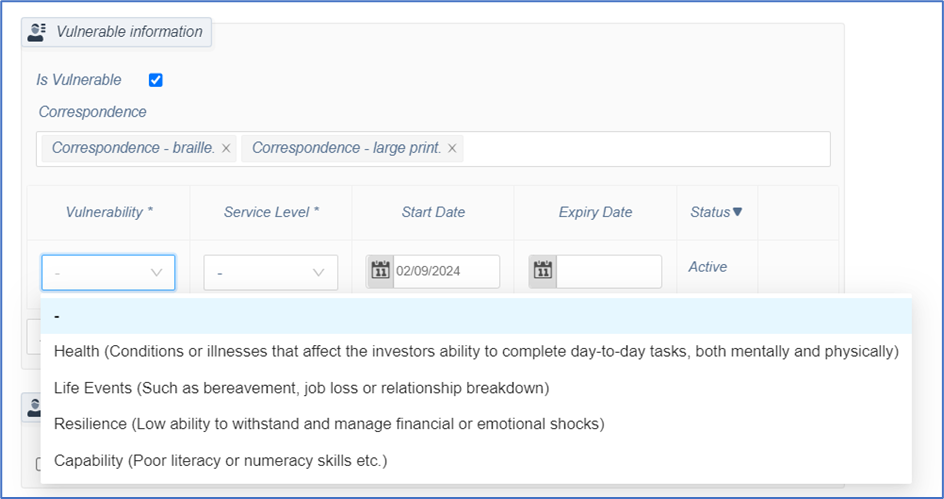
4. Set Service Level:
o Choose the appropriate service level that reflects the support the client requires.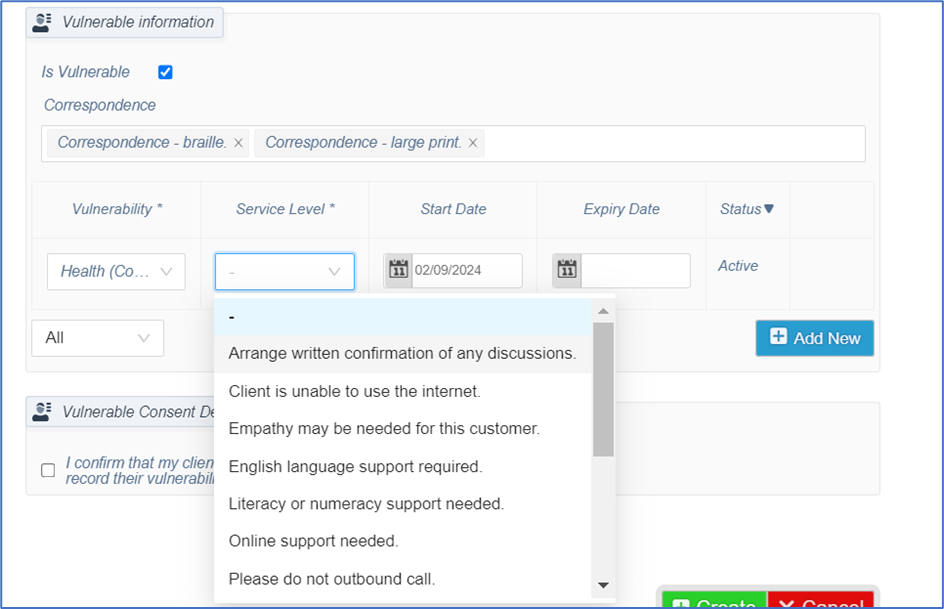
5. Define Start Date:
o Enter the start date for when the vulnerability requirements should commence (this is a mandatory field).
o An end date can also be specified but is optional.
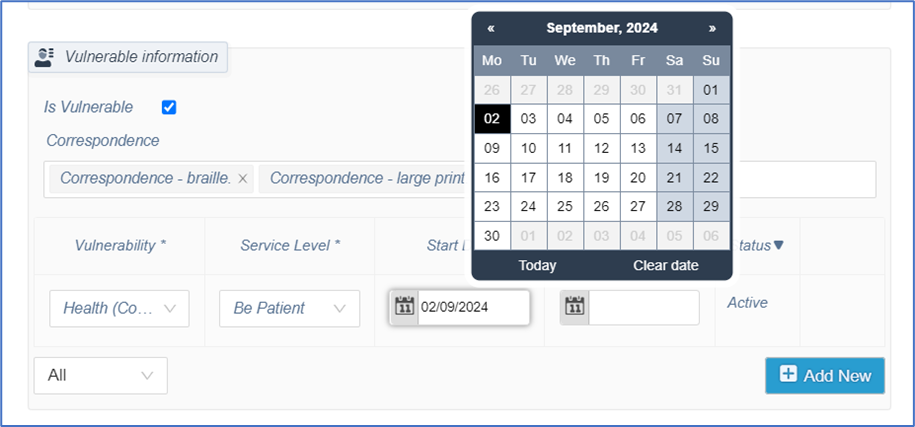
6. Add Multiple Vulnerabilities:
o If necessary, you can add multiple vulnerabilities by clicking the Add New button.
7. Vulnerable Consent Declaration:
o Ensure that the Vulnerable Consent Declaration checkbox is selected before creating the investor.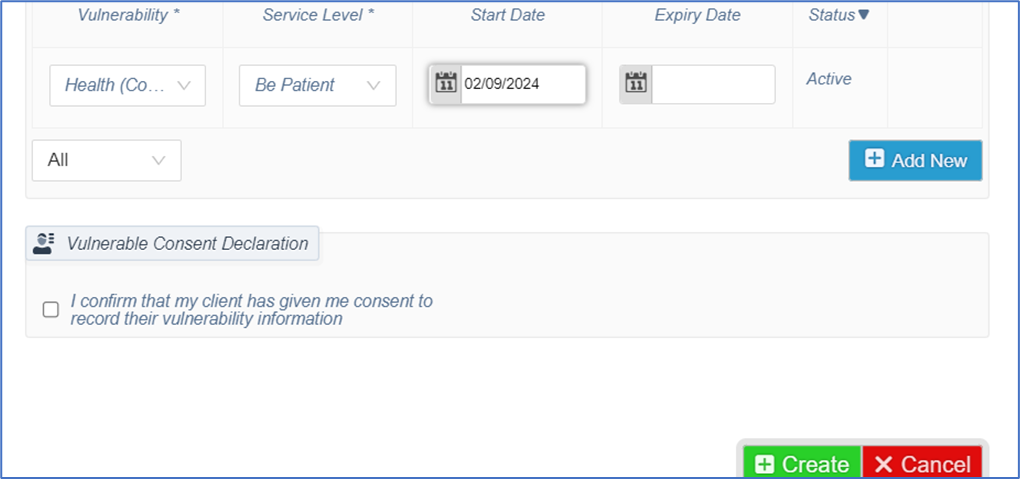
Updating Vulnerability Information for Existing Investors
To modify vulnerability information for an existing investor:
1. Navigate to the Investor screen.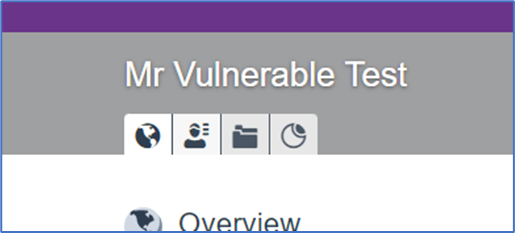
2. At the bottom of the screen, you will find the current vulnerability information.
3. Here, you can update existing vulnerabilities, delete them, or add new vulnerabilities as required.
For Internal Use Only:
Business Owner Team: Hubwise CS Management Team
Business Owner Contact Details: #csvhubwiseclientservicemanagement@uk.sscinc.com
Note: All Knowledge Base updates are approved by the Business Owner.
Was this article helpful?
That’s Great!
Thank you for your feedback
Sorry! We couldn't be helpful
Thank you for your feedback
Feedback sent
We appreciate your effort and will try to fix the article