You can record beneficiaries on the portal- the default displays Death Beneficiaries Required – but you can untick this if you wish to complete these details at a later stage. Best practice is to complete as part of the Account Opening Journey if possible:
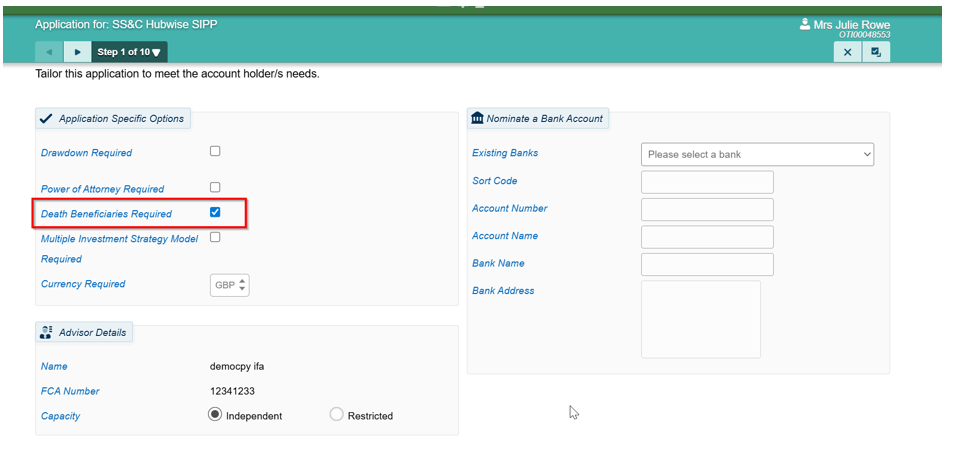
You arrive at the mid-point of the Application Journey- where you can produce the Illustration - ahead of the Death Beneficiary data capture screen so you can get to that point and save the in-progress application- before then returning to it when you have Death Beneficiary information available.
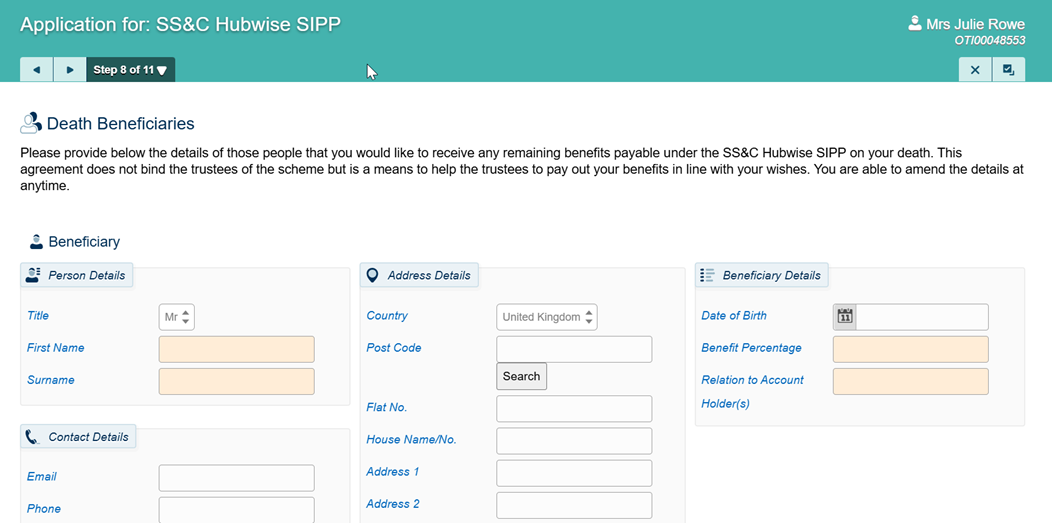
One or multiple beneficiaries can be captured. Use Add New to provide details of additional beneficiaries:

Only one scenario can be recorded in the Portal i.e. 50% to each child. Complex wishes are covered in the next section.
More complex, conditional scenarios should be captured via our Expression of Wishes PDF Form- using the Knowledge Base ‘Expression Of Wish’ article for guidance: Helpdesk : Hubwise Customer Services
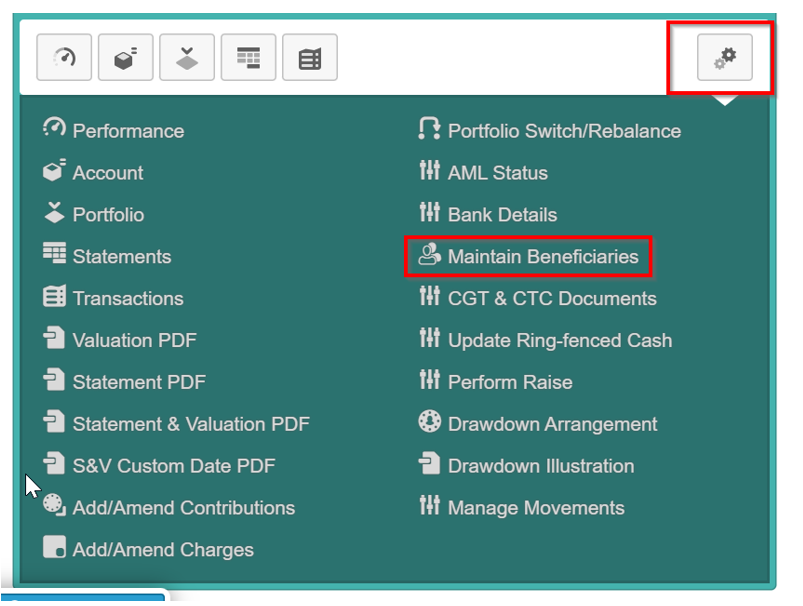
You can amend and/or add to Beneficiary information in the Portal once the SIPP Account has been opened, using ‘Maintain Beneficiaries’ in the All-Account Actions (double cog icon) dropdown:
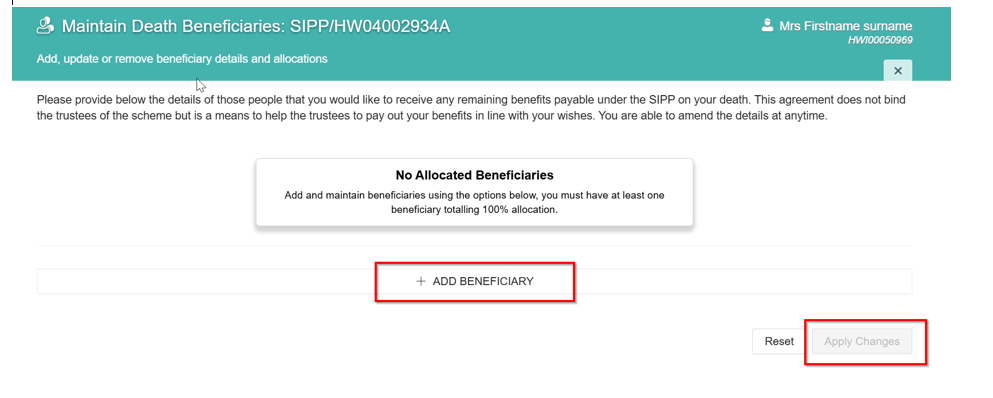
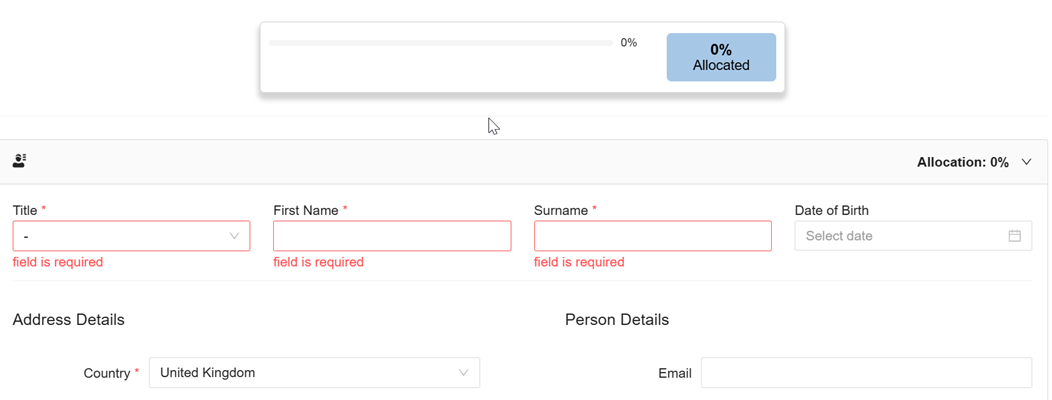
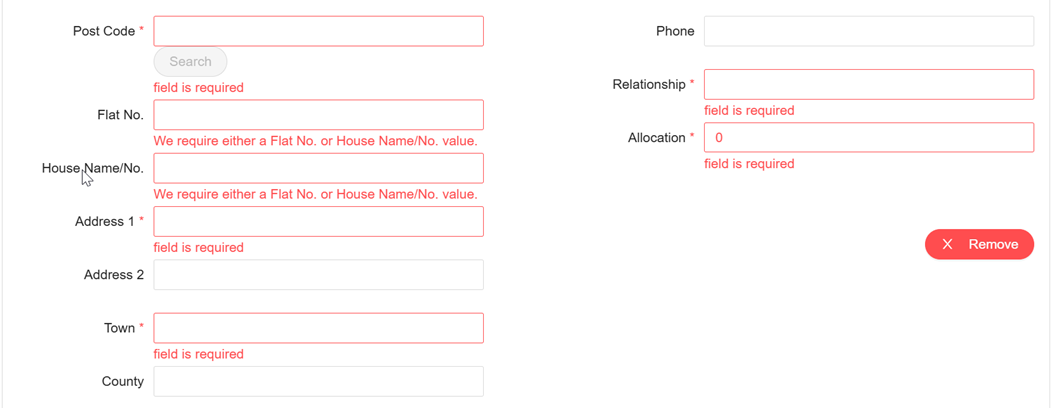
Complete and click ‘Apply Changes’:
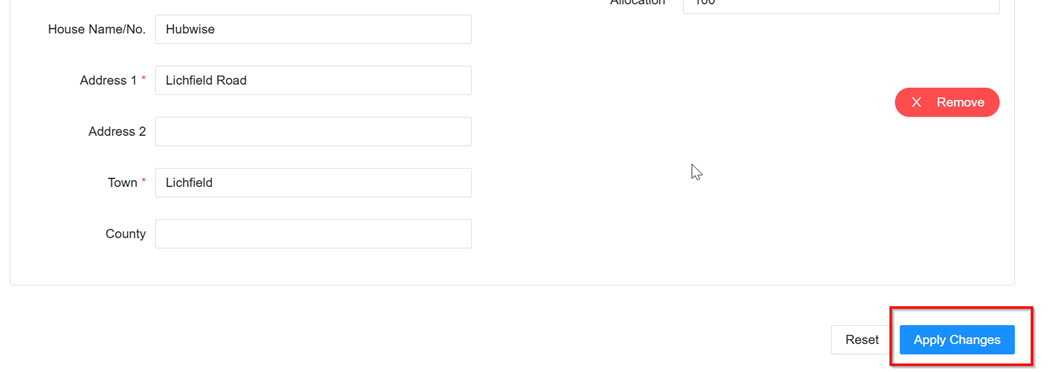
If you are changing Beneficiary information where the previous Allocation was 100% you will firstly need to reduce the Allocation to allow for the ‘Add Beneficiary’ Option to be displayed and selected.
You must end up with 100% Allocation for the system to allow and apply the changes:

- Please use Calibri as the default font - font size 16 for a header and 11 for content
- Please use the heading “show/ hide” function so that users can expand the relevant content and prevent lengthy page scrolling.
- Please include supporting screenshots/ video clips in the article ensuring that these are taken from a test environment (so as not to display live investor details). Ensure that screenshots are clearly visible.
- Please ensure your team have completed a 4 eyes check of the article/ guide before it is sent to the Platform Services team (note that the Platform Services team are not responsible for creating/ editing content).
- Please complete the business owner and version control section at the bottom of all guides/ articles.
Was this article helpful?
That’s Great!
Thank you for your feedback
Sorry! We couldn't be helpful
Thank you for your feedback
Feedback sent
We appreciate your effort and will try to fix the article