Manage Movements - Amending an Expectation
Purpose: Use the Manage Movements function in the Portal to correct an existing Expectation before funds are received.
When to use
- An Investor’s contribution amount changes before payment is sent.
- A keying error was made when creating the original Expectation.
- A fee needs to be corrected or added before the funds arrive.
How to amend an Expectation
- In the main Portal menu, select Dashboard / Manage.
- Find the relevant Investor and open the Manage Movements tab for their account.
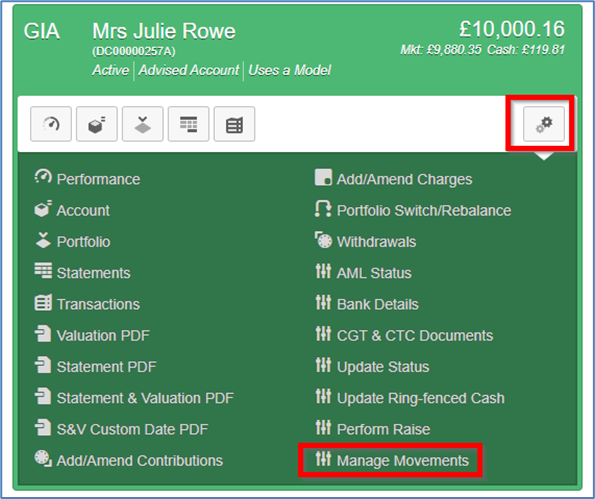
- Locate the existing Expectation that needs updating and select Edit (or Delete).
- If the contribution amount or details are incorrect, amend and save the Expectation.
- If a fee linked to the Expectation is incorrect and the funds have not yet arrived, delete the Expectation and re-enter it with the correct fee details.
This ensures any incoming payment automatically matches the Expectation, reduces manual intervention, and supports straight-through processing (STP).

- Make the necessary amendment (e.g., amount).

- Save your changes.
If the money has already arrived
Once funds have arrived, Expectations cannot be amended.
If the funds:
- are from the correct nominated bank account, and
- quote the correct Account Number
the system will automatically apply and ring-fence the cash. You will receive:
- a Cash - No Expectations report (via Company Reports in the Admin menu), and
- an email notification when the report is available.
Next steps
- Reduce the ring-fenced amount to zero
- Use All Account Actions > Portfolio Switch / Rebalance > Invest Surplus Cash to reinvest the funds.
Anything outside of the scenarios outlined above should be raised via a Freshdesk ticket for review.
Was this article helpful?
That’s Great!
Thank you for your feedback
Sorry! We couldn't be helpful
Thank you for your feedback
Feedback sent
We appreciate your effort and will try to fix the article